A face report starts with the photo you choose. Light and camera angle can change the details visible in that photo. The first step is a clear, comfortable portrait, rather than trying to make yourself look different.
Find soft, balanced light
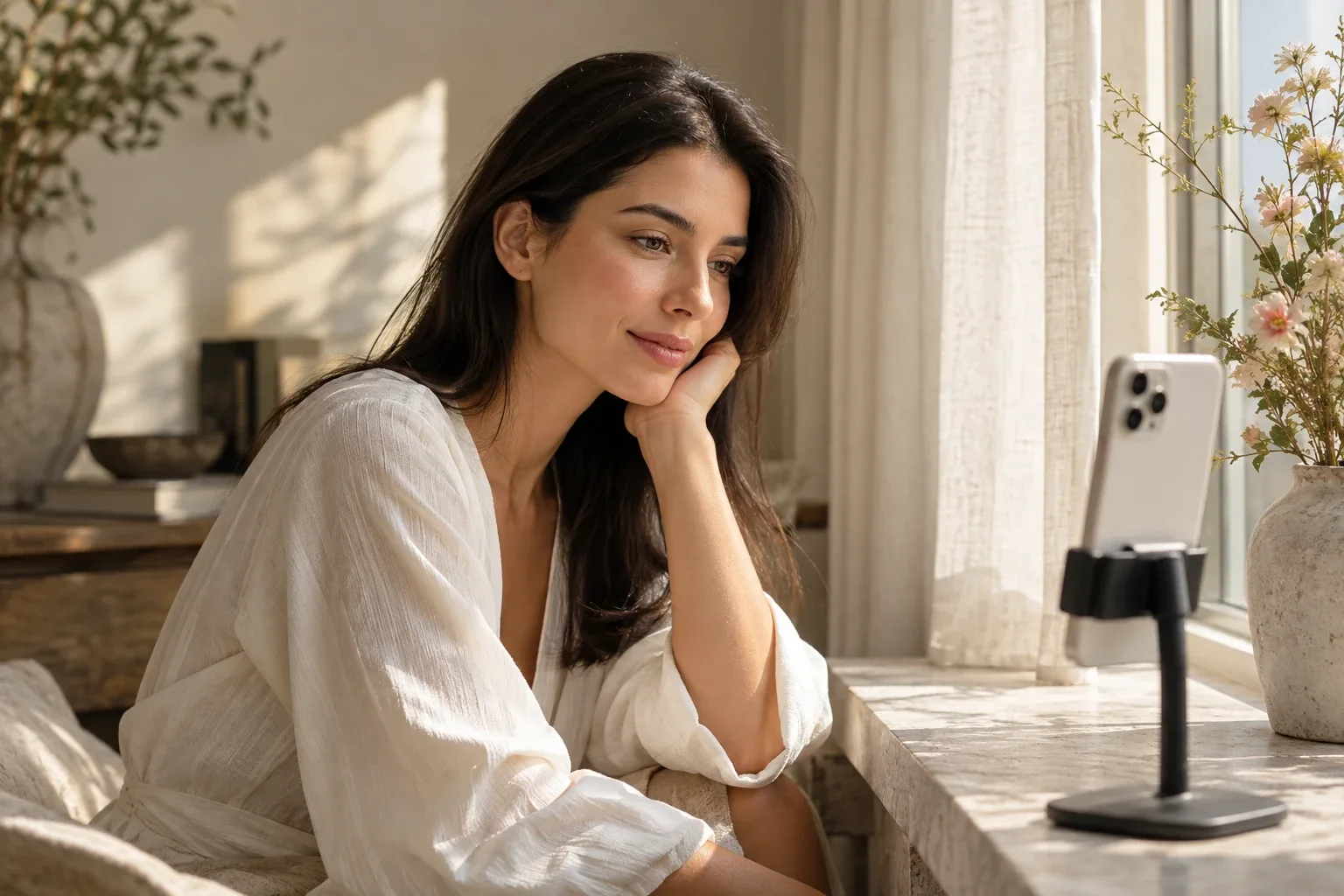
Stand near a window where light reaches your face evenly. Strong light from only one side can create deep shadows, while a dark room can hide details. Try facing the light rather than placing a bright window behind you. A photo in which you can see your whole face is more useful than a complicated lighting setup.
Keep the camera around eye level
Look toward the camera with a relaxed expression. A high or low angle changes the viewpoint and visible proportions. Leave enough distance for your whole head to fit comfortably in the frame instead of holding the phone very close.
Turn off beauty filters
Heavy retouching and beauty filters can alter skin appearance and facial contours. If you want to understand your own portrait, begin with an unfiltered photo. Move hair away from the areas you want to show.
Check focus and framing
After taking the photo, enlarge it and check the eyes and face for sharpness. Retake a frame with motion blur. Choose an individual portrait rather than a group photo so it is clear which face the report concerns.
Read the result in context
An AI report is not a precise measurement or medical assessment. Different lighting and angles can produce different interpretations. Treat the result as visual exploration or inspiration, rather than a fixed judgment about you.
A quick photo checklist
- Is there one person, with the full face visible?
- Does light reach the face evenly from the front or slightly to the side?
- Is the camera near eye level, and is the photo sharp?
- Are beauty filters, color filters, and heavy retouching off?
- Is your expression relaxed, with hair clear of the face?
A portrait under a yellow room light can look different from one by a window. The goal is to understand the input, not achieve a higher score. If you want to explore a difference, change only the lighting while keeping other conditions similar.
Selfie or a photo taken by someone else?
Either can be a starting point. Prioritize clarity, balanced light, and a visible face over the device name. Give a close selfie a little more distance and check the framing. More attempts do not guarantee a more accurate report.
Three common photo setups to troubleshoot
The bright window is behind you
The room may look bright while your face is darker than the background. Turn so the window lights your face, then check the saved photo. Keep the camera position similar so you can notice the lighting change.
One cheek is clear and the other is in shadow
Try moving relative to the light rather than adding a beauty filter. Look for enough detail on both sides. Even light is a useful starting point for this task; dramatic side light can still be an intentional choice for a different kind of portrait.
The photo is sharp but the perspective feels unfamiliar
Check how close the phone was. Take a second frame from farther away, using a stand and timer or another person if convenient. Do not change light, expression, and camera height at the same time. Our selfie comparison guide explains how to separate those variables.
Does a face photo need to be professionally taken?
A studio session is not a requirement for exploring the app. A clear portrait with a visible face is a reasonable starting point. Check the original in your gallery before uploading: if you cannot distinguish a detail yourself, a confident description from an AI does not make that detail reliable. Avoid spending report credits on repeated versions of a visibly blurry frame.
What to do after choosing a photo
Start with what AI face analysis does, then learn how to read a face report. If you are exploring a look, the personalized makeup guide helps you describe your preferences.
Photo selection, consent, and report creation happen in the iPhone app under the access conditions shown there. See FaceReport AI on the App Store.
INSIDE FACEREPORT AI
A next step for the portrait you prepared
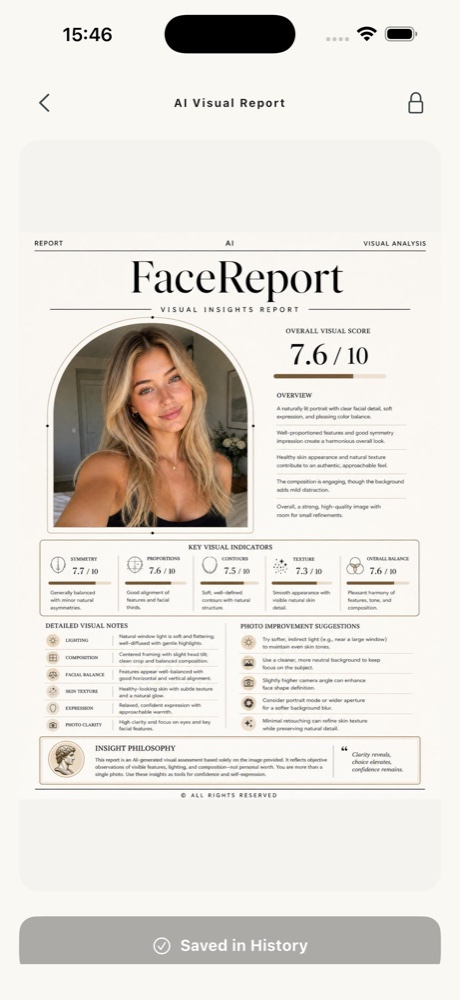
Check light and sharpness first, then read the report in the context of that same image.
- Choose an unfiltered portrait in balanced light.
- Review the processing explanation before requesting a report.
- Compare the lighting comment with the shadows in the photo.
Photo selection, consent, and reports happen in the app. AI ideas may be incorrect. Access and current prices are shown in the app.
For information and inspiration. How we prepare our guides ↗ · Türkçe sürüm ↗